.png)
Signing and authenticating with SMS
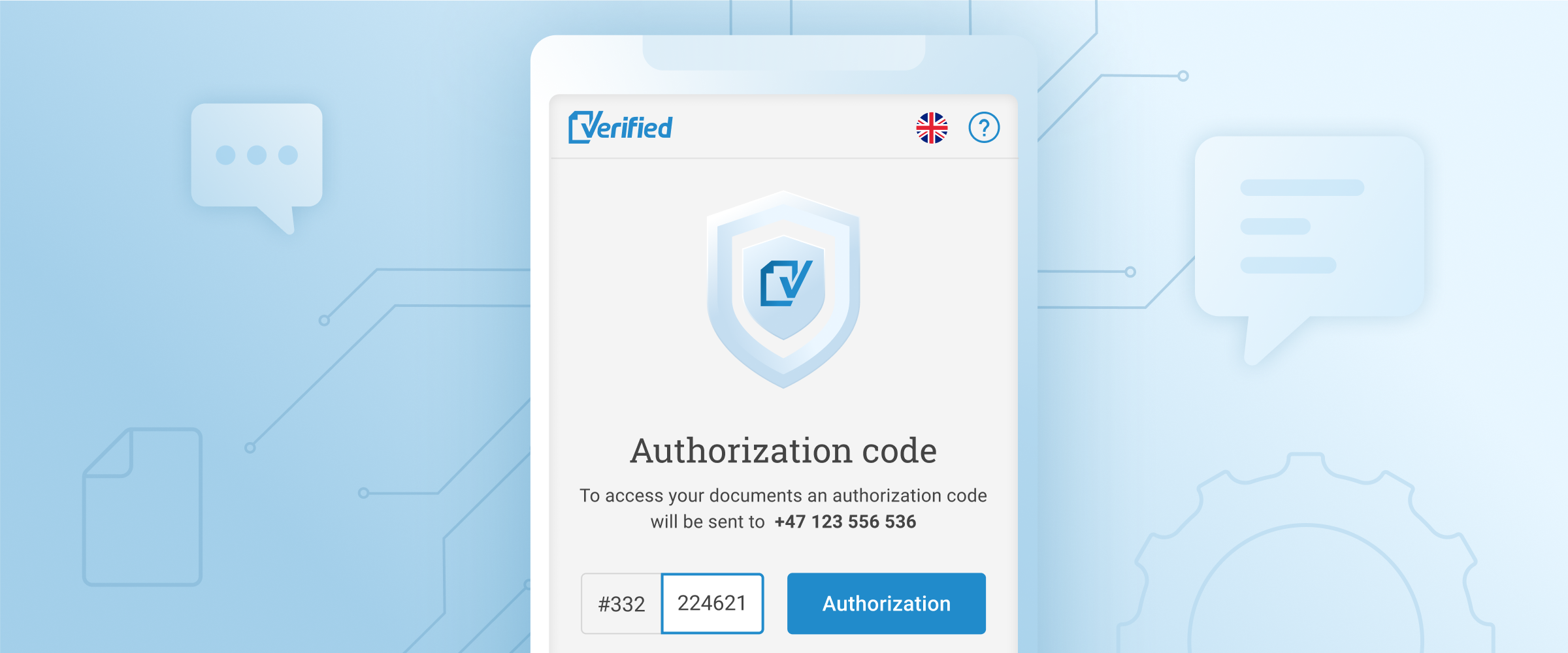
The Verified platform uses SMS to make mobile signing fast, flexible, and accessible. This functionality covers three core areas:
SMS Signing: Sign and legally execute documents using a 6-digit confirmation code.
SMS Authorization (Verified Secure): Authenticate a recipient's identity before granting access to confidential documents, or deliver invitation links via text message.
Quality of Life Enhancements: Practical additions including WebOTP autofill, expanded text greetings, Nordic country priority, and sender detail population.
1. SMS Signing
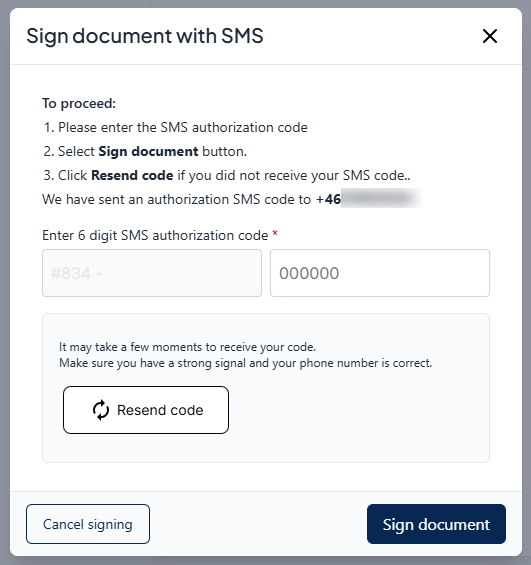 |
Signing with SMS is as simple as entering a 6 digit code |
SMS Signing allows recipients to legally sign documents without needing a national electronic ID (such as BankID or MitID).
How it works: Senders select SMS as the signing method during envelope creation. When the recipient opens the document and clicks the button to sign, Verified sends a 6-digit confirmation code to their mobile phone. Entering this code completes the signature.
Audit Trail & Legal Evidence: To guarantee legal non-repudiation, the recipient's verified phone number and full name are recorded directly in the signed PDF's cryptographic activity log.
2. SMS Authorization
SMS Authorization runs through our dedicated Authorization App and serves two distinct workflows. In both cases, the user experience follows two steps: (1) Press the button to receive a text code, and (2) Enter the code to proceed.
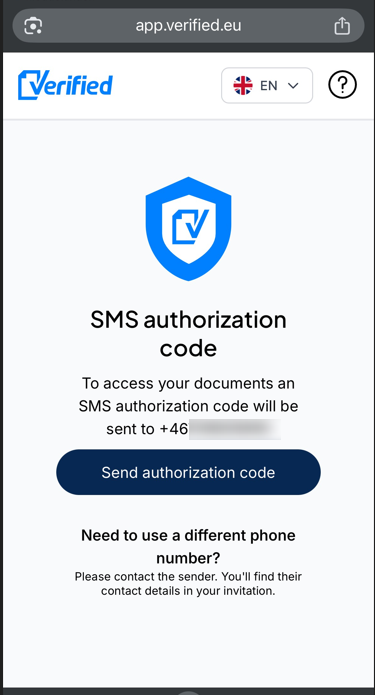 | 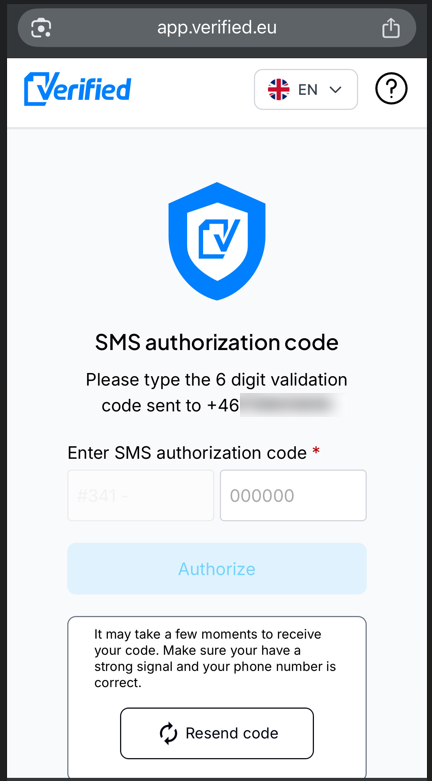 | |
1. Press the button to receive a code via SMS | 2. Enter the code in the next step |
2.1 Using SMS as an Authentication Method (Document Security Gate)
If you need signers to verify their identity before viewing confidential documents and they cannot use an eID:
The invitation is delivered to the recipient by email.
Clicking the link opens an SMS Authorization gate before any document pages load.
The recipient requests a confirmation code on-screen, receives it on their phone, and enters it to unlock the files.
(Note: SMS notification and SMS authentication are mutually exclusive; see Section 5.6).
2.2 Notifying Recipients via SMS (Delivery Channel)
Instead of sending an email invitation, you can deliver the document link straight to the recipient's phone via SMS.
When the recipient taps the invitation link, they are taken to the SMS Authorization page.
They must enter a verification code sent to that same phone number to access the envelope.
Why this extra step is mandatory: Signing URLs contain complex security tokens and exceed 1,000 characters. To fit inside an SMS, the link must be shortened. To prevent brute-force or enumeration attacks on shortened URLs, the platform requires phone number confirmation before exposing the document.
3. Platform Quality-of-Life Enhancements
"Use My Details" Phone Auto-Fill: When a sender adds themselves as a recipient in the default flow, clicking "Use My Details" now automatically populates their saved phone number. Senders can also edit this number directly in that step.
Nordic Country Code Priority: The country code selector covers over 40 destinations, with regional Nordic prefixes (+46, +47, +45, +358) pinned to the top of the list for quick access.
Expanded Greeting Message Length: SMS notifications previously had a 100-character cap to fit inside a single message segment. The limit has been expanded to 5 SMS segments, giving senders ample room for detailed greetings and instructions.
One-Time Passcode (OTP) Autofill: Mobile browsers can automatically detect and suggest incoming SMS codes directly above the keyboard:
Android: Supported on Google Chrome (v84 or higher).
iOS: Supported on iOS 14 or higher using Apple Safari and the default iOS keyboard.
Explicit Security Levels: Senders must explicitly pick their required authentication tier during envelope creation: eID (High), SMS (Medium), or Email (Basic).
4. Understanding Verified SMS Messages
Verified dispatches three distinct types of SMS messages, each designed for a specific stage of the workflow:
SMS Type | What Is Included in the Text |
1. SMS Invitation  | The sender's name, your custom greeting message, and the secure link to access the envelope. |
2. SMS Authorization  | A 3-digit Session ID, a 6-digit authorization code, and browser transaction details. |
3. SMS Signing  | A 3-digit Session ID, a 6-digit signing code, and browser transaction details. |
Anatomy of an Authorization & Signing Message:
Session ID (3 Digits): Identifies your current signing or authentication session. If you receive multiple texts in a short timeframe, ensure the 3-digit Session ID in the text matches the Session ID displayed on your screen.
Signing / Authorization Code (6 Digits): The verification code entered in the Verified app (or inserted via autofill).
Transaction Details: Browser-specific metadata included at the end of the text. Native mobile apps installed via an app store can access incoming SMS passcodes through device-level permissions. Because Verified is a zero-install web app that runs inside desktop and mobile browsers, modern operating systems require this standardized WebOTP transaction text to safely populate the code without compromising user privacy.
5. Frequently Asked Questions (FAQ)
5.1 How can I start using these features?
These features are enabled by default for all Verified platform users—no special account upgrade is required. When creating a new envelope, you will see:
SMS listed in the Signing Methods dropdown.
Medium (SMS Authentication) listed under Authentication Levels.
Notify by SMS available in the recipient configuration panel.
Developers can access all of these features programmatically via the Verified API.
5.2 What countries are supported?
Verified currently supports SMS delivery to the following 43 countries:
Argentina | Czechia | Iceland | Poland |
Austria | Denmark | Ireland | Portugal |
Belgium | Estonia | Israel | Romania |
Bulgaria | Faroe Islands | Italy | Slovakia |
Canada | Finland | Japan | Slovenia |
Croatia | France | Latvia | Spain |
Cyprus | Germany | Liechtenstein | Sweden |
Greece | Greenland | Lithuania | Switzerland |
Hong Kong | Hungary | Luxembourg | Ukraine |
Malta | Monaco | Netherlands | United Kingdom |
New Zealand | Norway | United States |
If you need to deliver an SMS to a country not listed here, contact support@verified.eu to request routing availability.
5.3 What if the recipient does not receive the SMS?
SMS delivery issues typically occur along the cellular network chain, most often when the recipient's phone is out of service range or has weak reception. In most cases, having the recipient move to an area with better coverage and requesting a new code resolves the issue.
5.4 Why does the platform send an extra SMS verification for notifications?
Because signing links exceed 1,000 characters, they must be shortened to fit within standard SMS message limits. Short URLs can theoretically be targeted by brute-force scanning tools; requiring the recipient to confirm their phone number via a secondary verification code ensures that only the intended recipient can access the files.
5.5 What if the phone number is wrong, or the recipient wants to change it?
Both the SMS Signing and SMS Authorization screens display contextual help text explaining what to do. The recipient must contact the sender directly. The sender can then open the envelope from their Dashboard, edit the recipient's phone details, and reissue the invitation.
5.6 Why can't I select "Notify by SMS" and "Authenticate with SMS" at the same time?
For two-factor authentication to remain secure, the notification channel and the authentication channel must be separate. Delivering the link via SMS and authenticating via the same phone number creates a single point of failure rather than true multi-factor security.
5.7 Are these SMS features available via the API?
Yes. All SMS signing, authentication, and dispatch options are fully supported in our API. Refer to the official Verified Developer Documentation for setup guides and endpoint schemas.