.png)
How to Switch Between Companies or Organizations?
If your Verified account is associated with more than one company or organization, you can change your active workspace seamlessly. You can select your workspace immediately when you log in, or change it at any time from your active dashboard session.
Method 1: Selecting a Company at Login
Go to the login page and enter your account credentials.
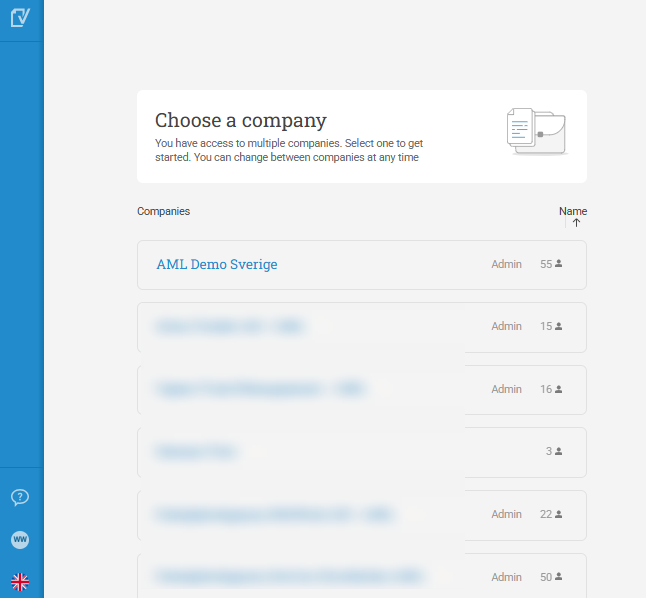
Upon authentication, a screen will appear requiring you to choose which company profile you want to access.
Click on the desired company or organization name to enter its specific workspace.
Method 2: Switching Workspaces While Logged In
If you are already working inside the platform, you do not need to log out and log back in to switch views:
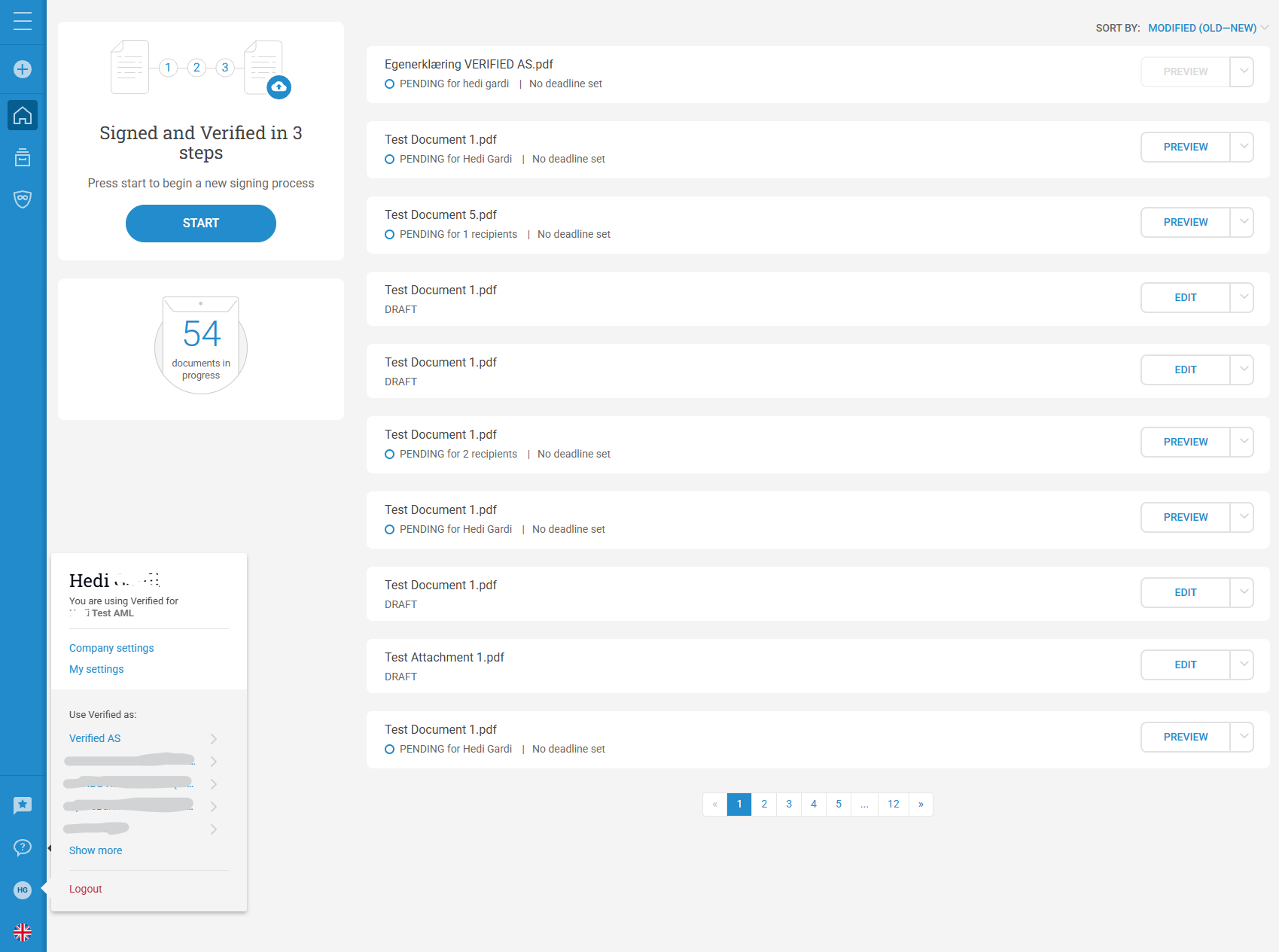
Locate the dropdown menu in the top-right corner of your screen (next to your profile details).
Click the menu to expand the list of all companies you currently have access to.
Select the target company. The page will automatically update to display that specific organization's dashboard, envelopes, and archive history.
💡 Missing a Company Profile? If you are supposed to have access to a specific company or department but do not see it listed in your dropdown menu, please contact that organization's workspace Admin. They will need to explicitly invite your email address to join that corporate workspace partition.