.png)
SAML SSO: Account & User Migration Guide
With SAML-based Single Sign-On (SSO) enabled, your team can log into the Verified platform securely using your company's existing identity provider credentials (such as Microsoft Entra ID / Active Directory).
For existing Verified customers transitioning to SSO, your users' historical data, including all their existing signing envelopes, must be linked to their new SSO identities. This guide walks organization administrators through what to expect during this one-time migration process.
The Migration Workflow at a Glance
Before Migration: Users navigate to
app.verified.euand sign in with standard Verified platform email and password credentials.After Migration: Users navigate to your organization's custom subdomain (e.g.,
acme.verified.eu) and sign in seamlessly with their corporate credentials. They will instantly access the same familiar Verified dashboard and existing envelopes.
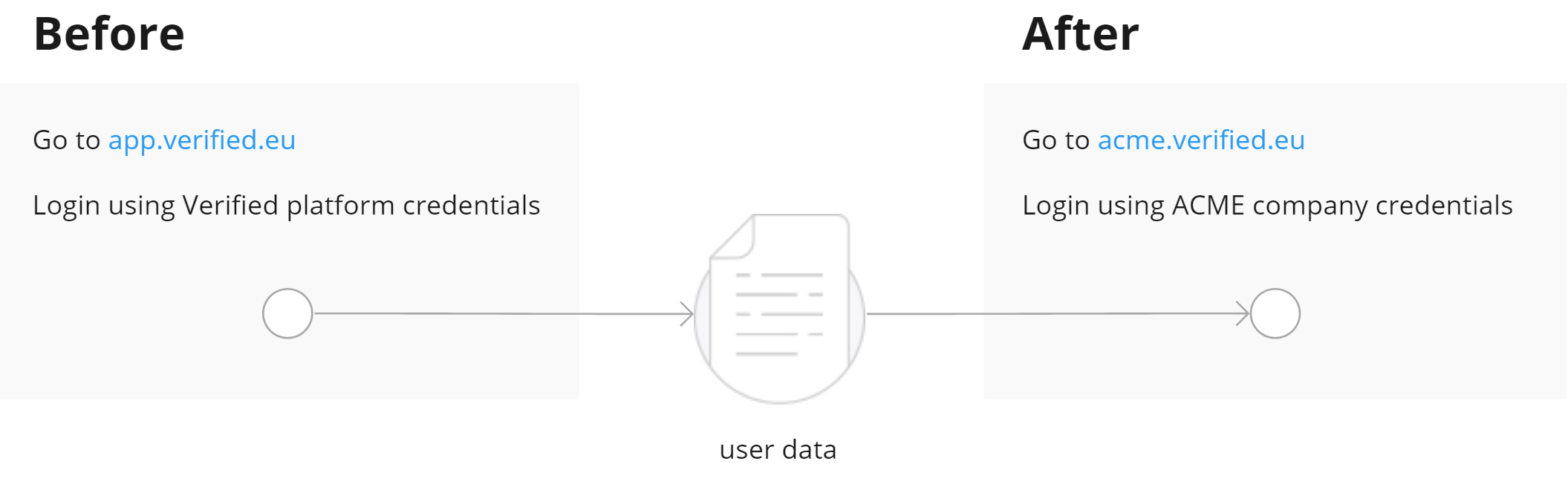
The entire transition is completed in four simple stages:
Enable the SAML/SSO functionality for your organization.
Notify your team members about the switch to SSO.
Users log in via the new URL and complete a brief 2-minute linking process.
Migration is complete, and corporate login becomes permanent.
Detailed Step-by-Step Implementation
Step 1: Enabling SAML/SSO for Your Organization
SSO activation is configured on-demand. If you haven't yet set up your custom corporate identity provider mapping, please contact the Verified Support Team to get your organization's unique domain activated.
Step 2: Informing Your Team
Because your team members will use a completely new login URL, you must notify them before turning on the feature. Users who have bookmarked app.verified.eu will need to delete it and bookmark your custom subdomain instead.
✉️ Sample Internal Announcement Template:
Subject: Action Required: Transition to Single Sign-On (SSO) for Verified
Hi Team,
To enhance our data security and simplify your login experience, we have enabled Single Sign-On (SSO) for the Verified platform. Moving forward, you can log in using your standard corporate credentials.
What you need to do:
Update your bookmarks to our new custom login link: for example
https://acme.verified.euLog in using your corporate email account.
Enter your old Verified platform password one final time when prompted to merge and link your existing signing envelopes to your corporate account.
Please ensure you have your old Verified platform credentials ready before you click the link. The initial account linkage takes less than two minutes and only needs to be completed once.
Please delete any old bookmarks pointing to the old
app.verified.euaddress starting today.
Step 3: The User Sign-In Experience
3.0 Handling Users Who Use the Old Link
If a user overlooks the announcement and mistakenly navigates to the old app.verified.eu link, they can still enter their original Verified email and password. Upon logging in, the platform will detect the pending migration and display a mandatory redirect screen guiding them to proceed with the migration or log out.
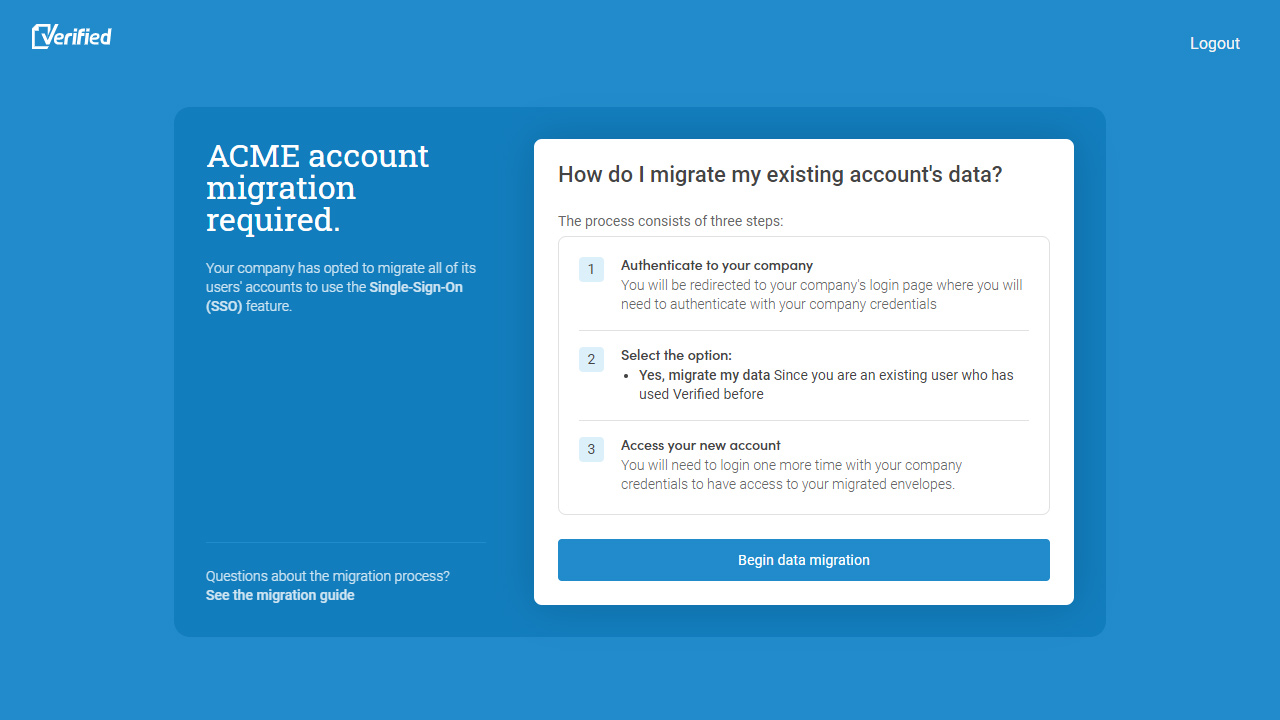
3.1 Arriving at Your Custom URL
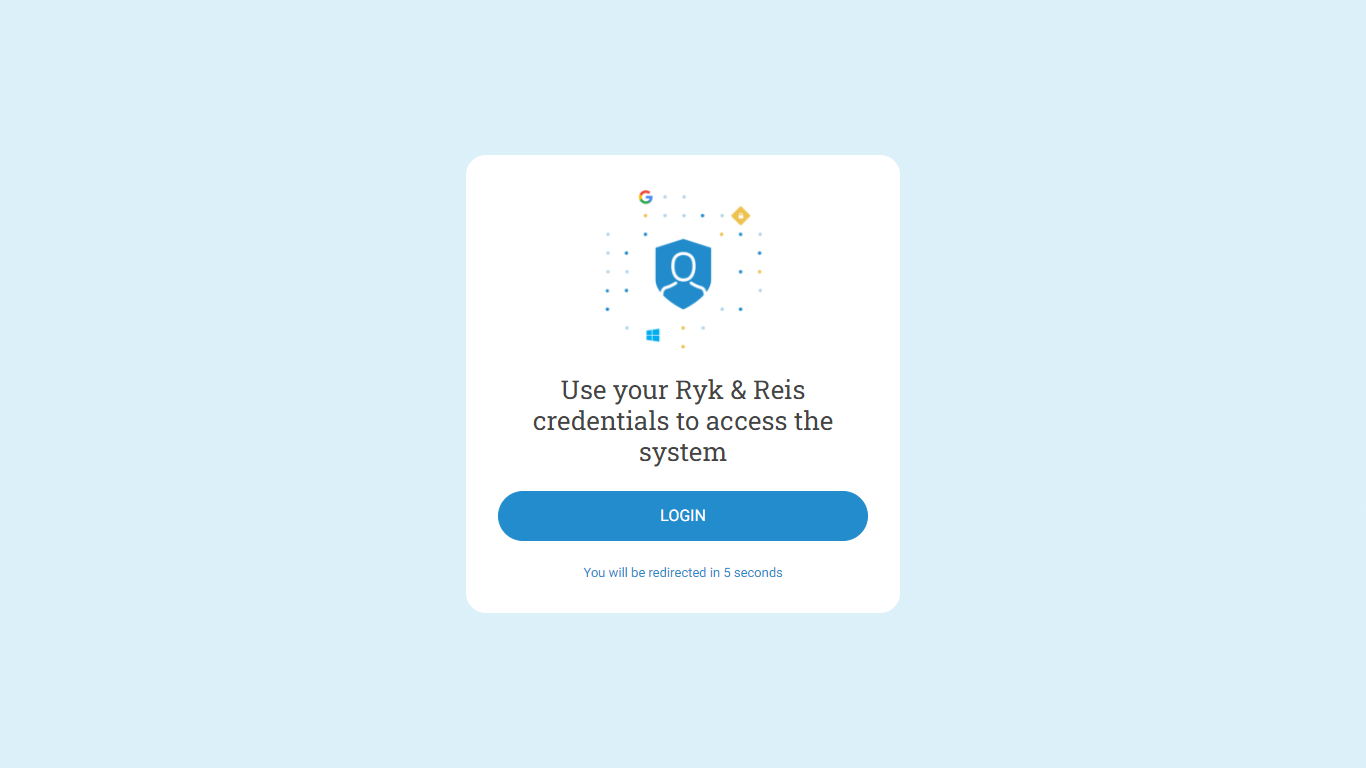
When accessing your organization's unique web link (e.g., acme.verified.eu), users will see a clean portal interface. Once on the login page, users simply need to click the "Login" button. They will then be automatically redirected to your organization's configured Single Sign-On (SSO) provider to complete the authentication process.
3.2 Data Migration Prompt (Mapping Profiles)
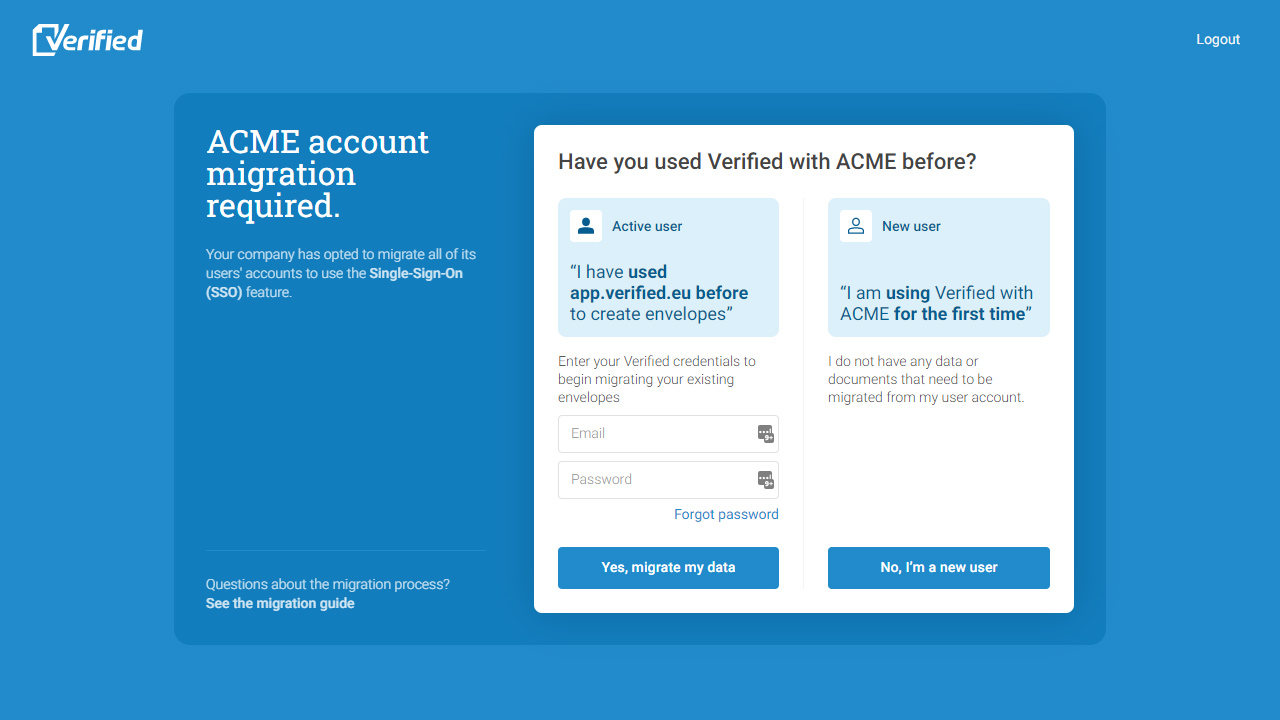
Onceauthenticated by your corporate directory, the system will ask: "Have you used the Verified platform before?"
Scenario A: Existing Users (Choose "Yes, migrate my data")
The user is prompted to type their original Verified login password. This maps their legacy envelope history to their active SSO profile.
Scenario B: Brand New Users (Choose "I have no data to migrate")
If the employee joined your company after the corporate integration was established, they select this option to create a completely fresh profile with no historical data.
3.3 Finalizing the Sync
After the user successfully verifies their existing Verified account credentials, the account migration is completed automatically in the background. This process typically takes only 1–2 seconds.
Once the migration is complete, the user should click "Log in to access envelopes".
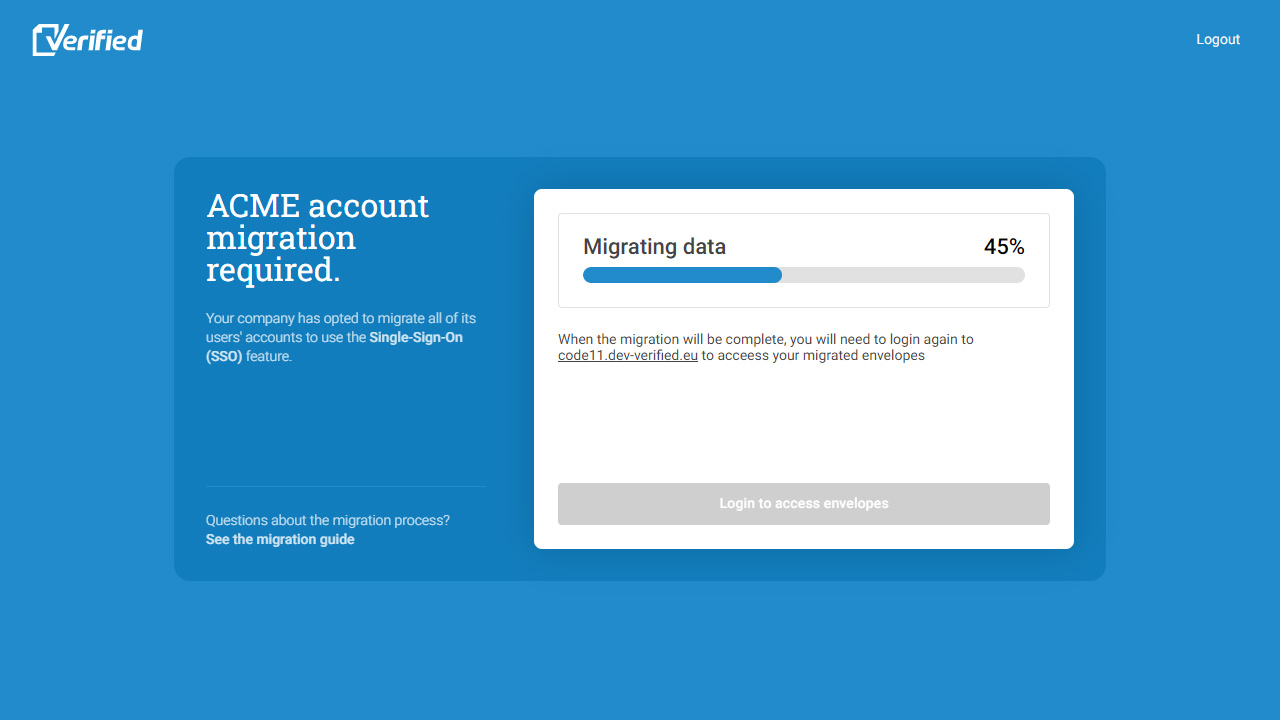
This final login establishes the connection between the user's organization account (SSO) and their existing Verified account, providing access to all previously stored envelopes, documents, and account data.
4.0 Accessing Verified Going Forward
After the migration has been completed, users should always access Verified through their organization's dedicated URL and sign in using their organization credentials via Single Sign-On (SSO).
The migration is a one-time process and will not need to be repeated.
Frequently Asked Questions (FAQ)
Q: What happens if an existing user accidentally clicks "I have no data to migrate"?
A: If a user skips the migration step by mistake, their historical envelopes will not show up. Contact Verified Support immediately. Our engineering team will reset the migration flag on our backend so the user is prompted to link their data again the next time they log in.
Q: What if an employee has access to multiple company profiles or departments?
A: All associated department access permissions and historical envelopes are migrated together during the mapping phase. Their multi-company dashboard access rights remain exactly as they were before the transition.
Q: Can a user still use standard credentials at app.verified.eu after migrating?
A: No. Once an account has been linked to your secure corporate subdomain, legacy authentication access to those workspaces is deactivated. They must log in through your custom corporate URL.
Q: Do subsequent new hires have to go through the migration selector step?
A: Yes. Verified cannot automatically determine if a completely new corporate email identity corresponds to an unlinked profile. New hires will simply select "I have no data to migrate" on their very first sign-in, flag themselves as updated, and never see the screen again.
Q: Is there any risk of corporate documents or envelope data being lost?
A: No. While we use the term "migration" for simplicity, no files are actually shifted, moved, or altered. Your data remains in place. The platform is simply remapping your underlying system access rights to point securely to your corporate identity provider instead of standard web passwords.