.png)
Why Can't I View My PDF Content?
If you open a PDF inside your web browser and see a blank screen, a broken icon, or a "Please wait..." message, your browser's built-in PDF viewer is struggling to read the file. This usually happens when a PDF contains interactive form fields, dynamic calculations, or advanced formatting layers that standard browsers cannot render. 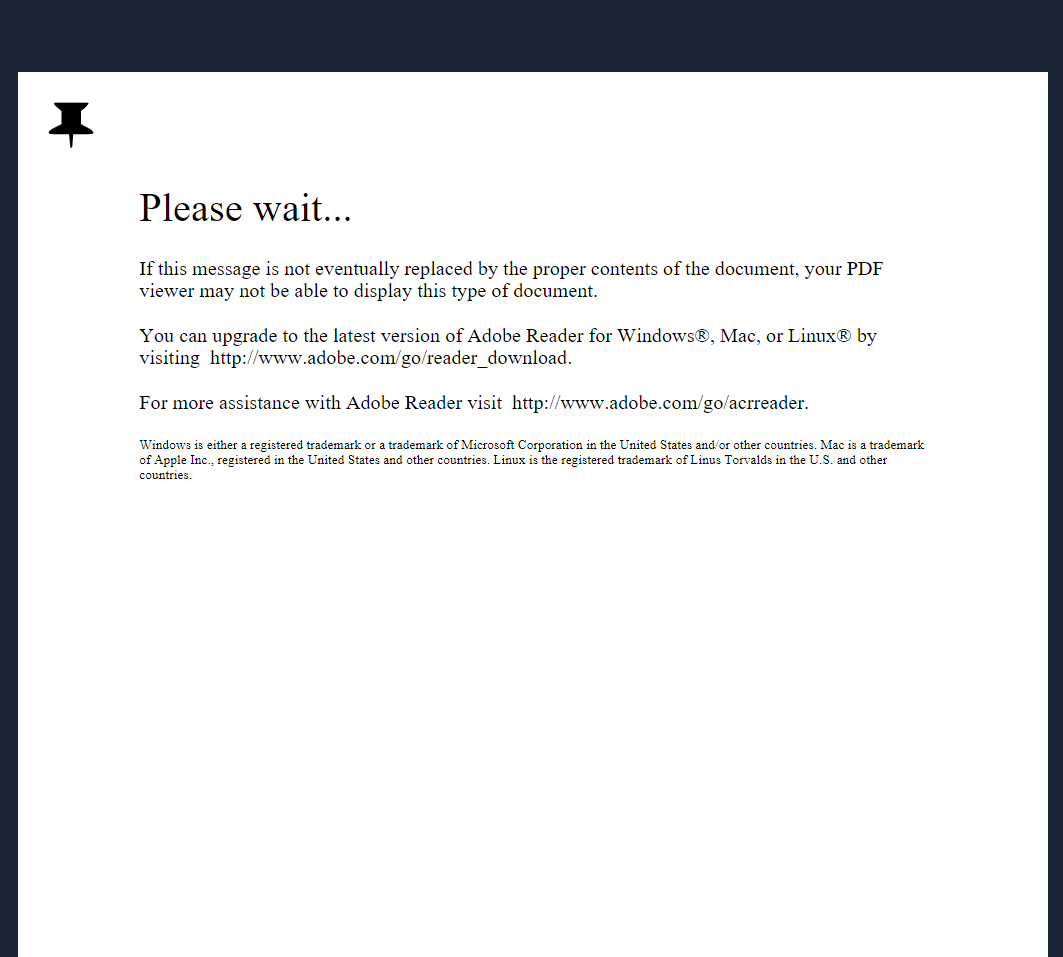
To view the document's content correctly, simply download the file to your device and open it with a dedicated PDF reader like Adobe Acrobat Reader.
Why Web Browsers Block Advanced PDFs
Web browsers (like Google Chrome, Microsoft Edge, or Safari) are designed to read standard, flat text documents. They do not possess the advanced software engines required to process complex document elements, such as:
Interactive fillable forms
Dynamic XML/XFA fields
Special security certificates or digital signatures
When a browser encounters these layers, it often gives up and displays a placeholder message instead of the actual text.
Step-by-Step Resolution
Follow these three steps to open your document securely:
Download the PDF: Instead of viewing it in your browser tab, click the Download icon (usually a downward-pointing arrow in the top-right corner of your browser screen).
Open Adobe Acrobat Reader: If you do not have it installed, download the free official desktop app safely from get.adobe.com/reader.
Launch the File: Open the Adobe Acrobat app on your computer, click File > Open, and select the PDF from your local Downloads folder. The content will now render perfectly with all advanced formatting visible.
💡 Tip for Document Senders
If you are uploading this PDF to Verified to be signed by your clients, you want to make sure your signers don't run into this issue.
Before uploading the file to your dashboard, flatten the PDF using the "Print to PDF" method. This permanently merges all active form elements into a clean, static, reader-friendly format that works flawlessly across all devices and web browsers.
To learn exactly how to do this in under 30 seconds, read our guide on PDF Document Requirements for E-Signing.