.png)
Choosing a flow using the flow selector
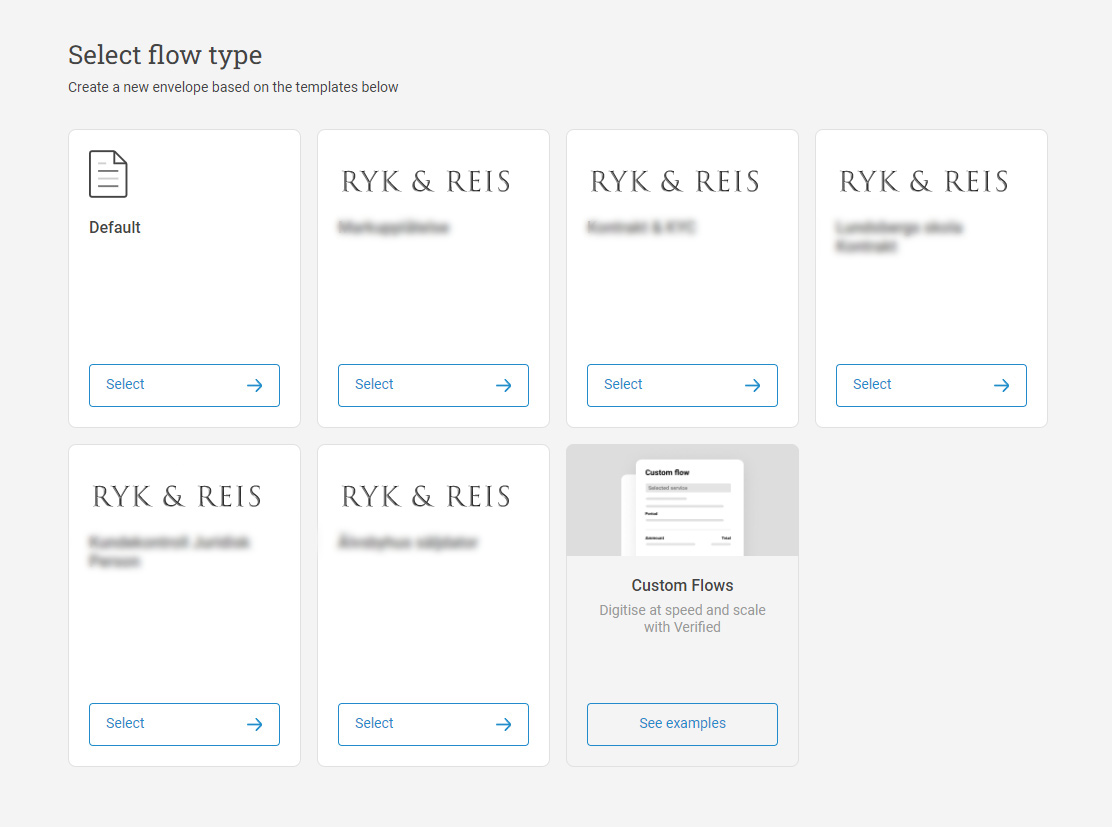
The Flow Selector is a launch screen in the Verified web app that appears whenever you start a new transaction. It allows document senders to choose between the standard Default Flow and any custom, company-specific workflows or templates configured for their organization.
👥 Who Is This Relevant For?
Web App Senders: Relevant to any registered Verified user who creates and dispatches envelopes via the web portal (app.verified.eu).
API Users: No impact. The Flow Selector is purely a web interface tool. Programmatic integrations sending documents via the Verified API bypass this screen entirely.
⚙️ How It Works
When initiating a transaction in your account, the platform dynamically displays all workflows assigned to your organization:
Click the New Envelope or Start button on your dashboard.
The Flow Selector screen will appear, displaying:
The Default Flow: The standard upload-and-sign workflow for ad-hoc documents.
Custom Flows & Templates: Tailored forms, pre-configured routing paths, or automated intake flows set up specifically for your company.
Click on the flow you wish to run to proceed directly into its tailored setup steps.
🔒 Customizing Available Flows (Hiding the Default Flow)
If your company exclusively uses custom templates or specific structured workflows, having the unguided "Default Flow" visible can lead to user error or non-compliant document creation.
Can the Default Flow be hidden? Yes. Administrators can restrict workspace visibility so team members only see approved company workflows.
How to configure it: Hiding the Default Flow requires a workspace configuration update. Submit a request to our team at support@verified.eu, and we will adjust your organization's flow permissions.