.png)
How to Handle Bounced Email Notifications
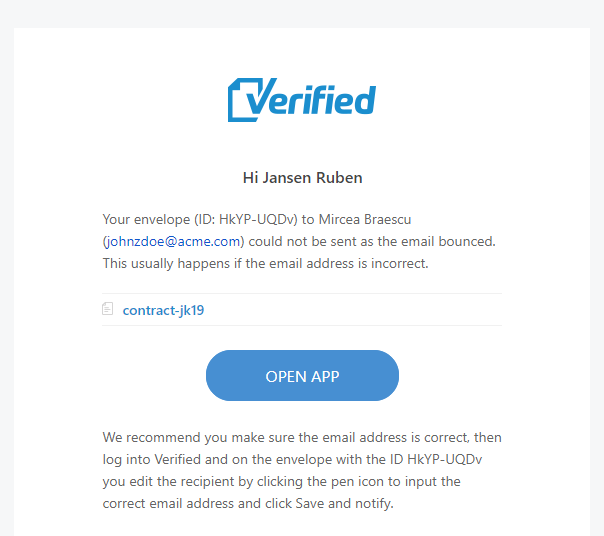
If an invitation or reminder email cannot be delivered to a recipient, Verified automatically alerts the sender via a Bounced Email Notification. This real-time alert ensures you can quickly fix typos or contact the recipient through an alternative channel without leaving transactions stalled.
Because delivery tracking is essential for keeping workflows moving, this feature is enabled by default for all accounts.
Why Do Emails Bounce?
An email delivery failure (bounce) typically happens for one of three reasons:
Typo or Invalid Address: A misspelled domain, misplaced character, or nonexistent inbox (the most common cause).
Mailbox Full: The recipient’s email inbox has exceeded its storage quota and cannot accept new incoming mail.
Server Rejection or Firewall Rules: The recipient's corporate mail server is temporarily unavailable or security filters are blocking external automated mail.
🛠️ What to Do When an Email Bounces (Step-by-Step)
When a delivery attempt fails, Verified immediately sends you an alert containing the affected recipient's details and the transaction ID. Follow these steps to resolve it:
Copy the Envelope ID: Open the bounce notification email in your inbox and copy the Envelope ID provided in the message body.
Locate the Envelope: Log into your Dashboard or Archive and paste the Envelope ID directly into the search bar.
Open the Recipient Details: Click to expand the envelope transaction.
Edit the Email Address:
Locate the recipient whose email bounced and click the Pen (Edit) icon ✏️ on their row.
Correct the email address in the field.
Reissue the Invitation: Click Save and Notify.
The platform will instantly cancel the previous delivery attempt, update the record, and send a fresh signing link to the corrected address.
⚙️ Managing Your Notification Preferences
Bounce alerts are active by default. If you ever need to adjust your email notification preferences:
Click your profile avatar and go to My Settings in the left navigation sidebar.
Select the Settings sub-tab and locate the Email notifications section.
Locate the setting:
"Do NOT notify me on email bounced"
Check or uncheck the box based on your preference:
Unchecked (Unticked): You will receive bounce alerts (Recommended).
Checked (Ticked): Bounce alerts are silenced.
Click Save to confirm.

❓ Frequently Asked Questions (FAQ)
Does an email bounce cancel or expire the envelope?
No. The envelope remains active and in progress. The signing link simply remains undelivered until you update the contact details and trigger a new invitation.
What should I do if the email address is spelled correctly?
If the address has no typos but still bounces, the issue is on the recipient's receiving end (e.g., an over-quota mailbox or strict enterprise spam filtering). Ask the recipient to verify their inbox capacity or have their IT department whitelist delivery from verified.eu. Alternatively, you can switch their notification method to SMS from the recipient edit modal.