.png)
Known Issue: How to Clear Your Browser Cache for the Verified Platform
💡 Why Am I Seeing an Error?
When we release updates to app.verified.eu, your web browser might still try to load older, temporary files (called cache and cookies) that it saved from your previous sessions. When these old files conflict with our new updates, it can cause unexpected glitches, loading loops, or login errors.
Clearing this data forces your browser to download the absolute latest, secure version of our platform.
⚡ Quick Fix Tip: Before diving into your browser settings, try a Hard Refresh first.
Windows: Press
Ctrl+F5(orCtrl+ click the Reload icon).Mac: Press
Cmd+Shift+R. If a hard refresh doesn't solve the issue, find your browser below and follow the quick steps.
Desktop Browsers
.png) Google Chrome
Google Chrome
Paste
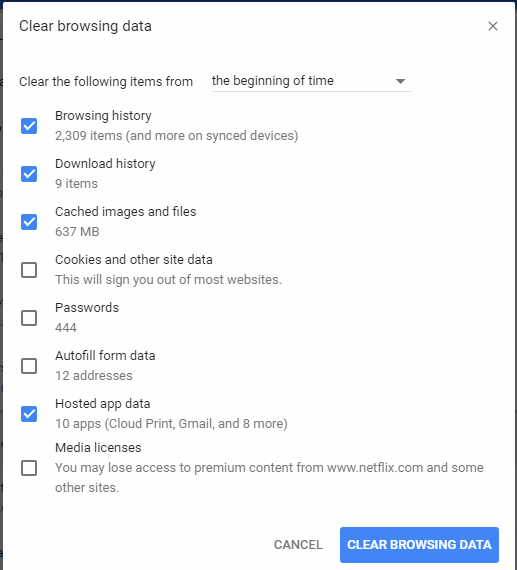
chrome://settings/clearBrowserDatainto your address bar and press Enter.Switch to the Advanced tab at the top of the window.
Change the Time Range to All time.
Check the boxes for:
Cookies and other site data
Cached images and files
Click Clear data, then restart Chrome.
.png) Microsoft Edge
Microsoft Edge
Paste
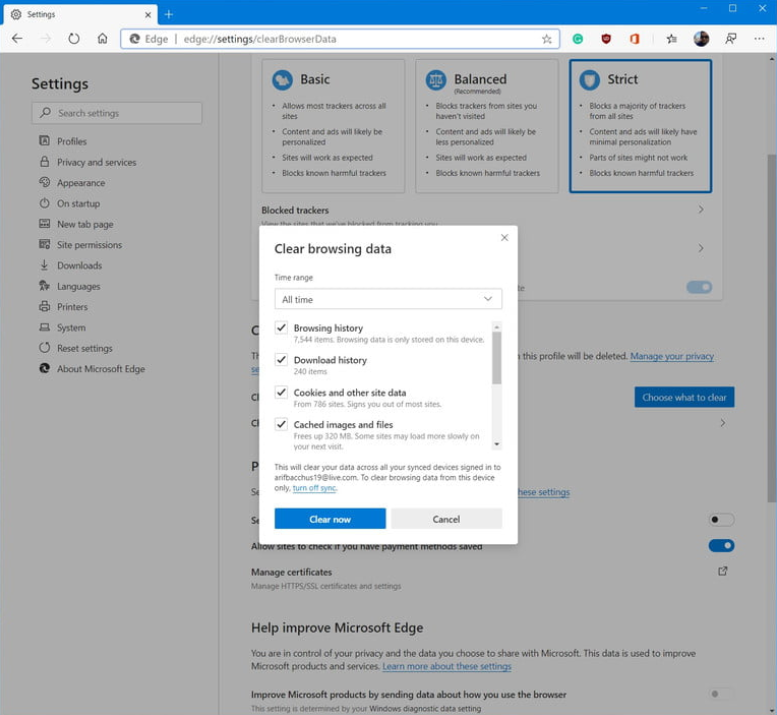
edge://settings/privacyinto your address bar and press Enter.Scroll down to the Clear browsing data section and click Choose what to clear.
Set the Time Range to All time.
Check Cookies and other site data and Cached images and files.
Click Clear now, then restart Edge.
.png) Mozilla Firefox
Mozilla Firefox
Paste
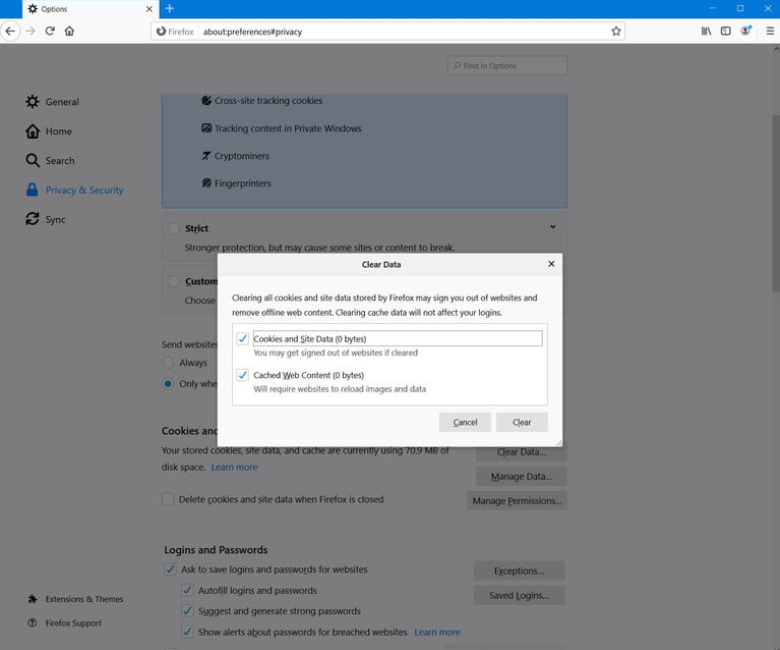
about:preferences#privacyinto your address bar and press Enter.Scroll down to the History section and click Clear History....
Set the Time range to clear to Everything.
Under the History list, check Cookies and Cache.
Click OK, then restart Firefox.
.png) Apple Safari (Mac)
Apple Safari (Mac)
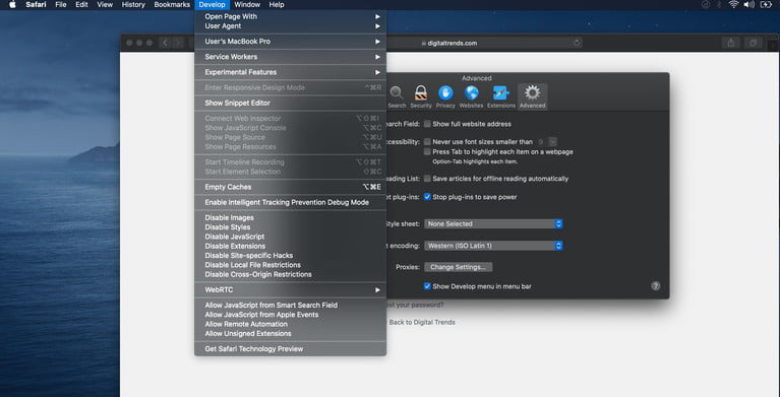
Click Safari in the top menu bar.
Select Clear History....
In the drop-down menu, choose all history.
Click Clear History.
Completely close and reopen Safari.
.png) Opera
Opera
Paste
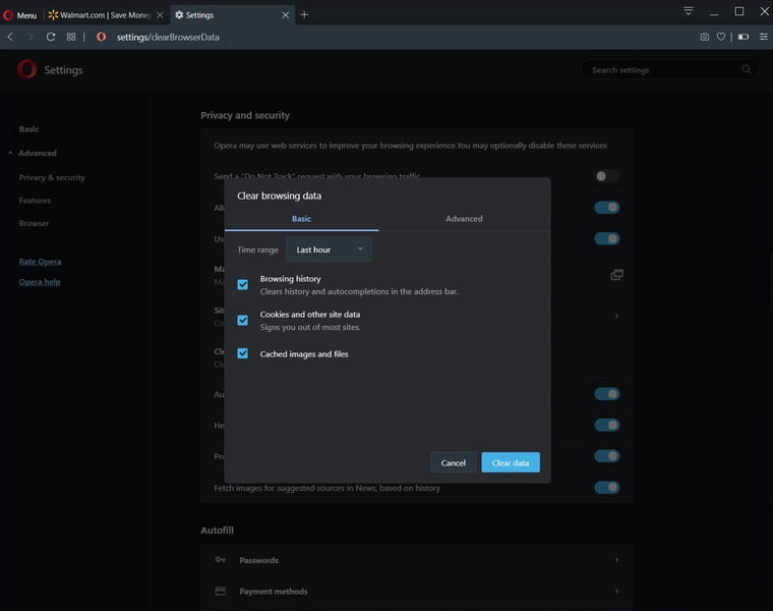
settings/clearBrowserDatainto your address bar and press Enter.Set the Time Range to All time.
Check the boxes for Cookies and other site data and Cached images and files.
Click Clear data.
Mobile & Tablet Browsers
Safari (iPhone & iPad)
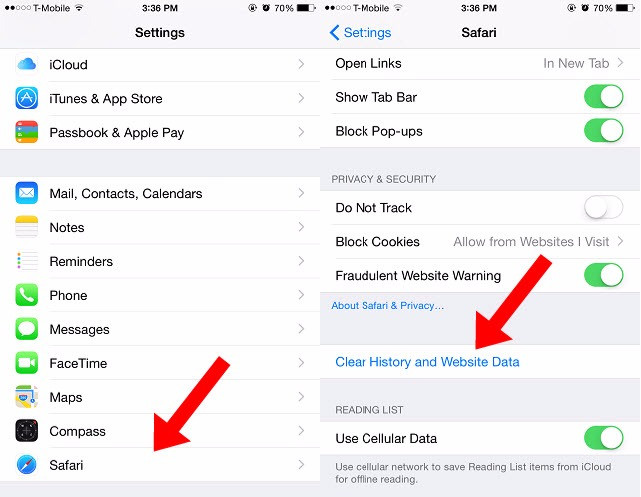
Open your device's global Settings app.
Scroll down and tap Safari.
Scroll down and tap Clear History and Website Data.
Tap Clear History to confirm, then swipe away/close the Safari app before reopening it.
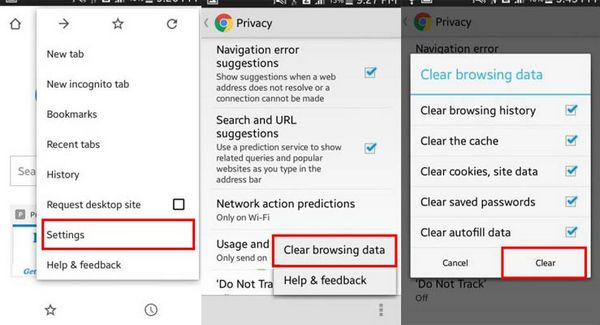
Google Chrome (Android & iOS)
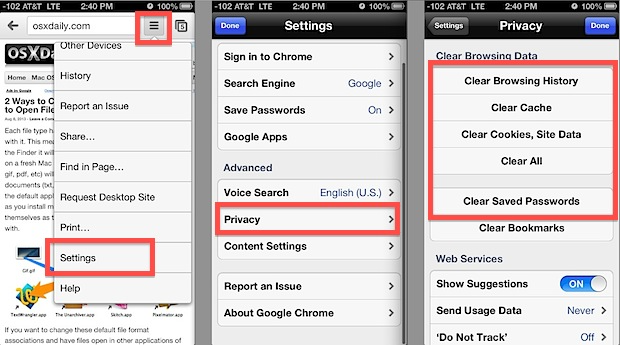
Open Chrome and tap the Three Dots (Menu) icon.
Tap Settings, then navigate to Privacy and security.
Tap Clear browsing data.
Set the Time Range to All time.
Check Cookies and site data and Cached images and files.
Tap Clear data.
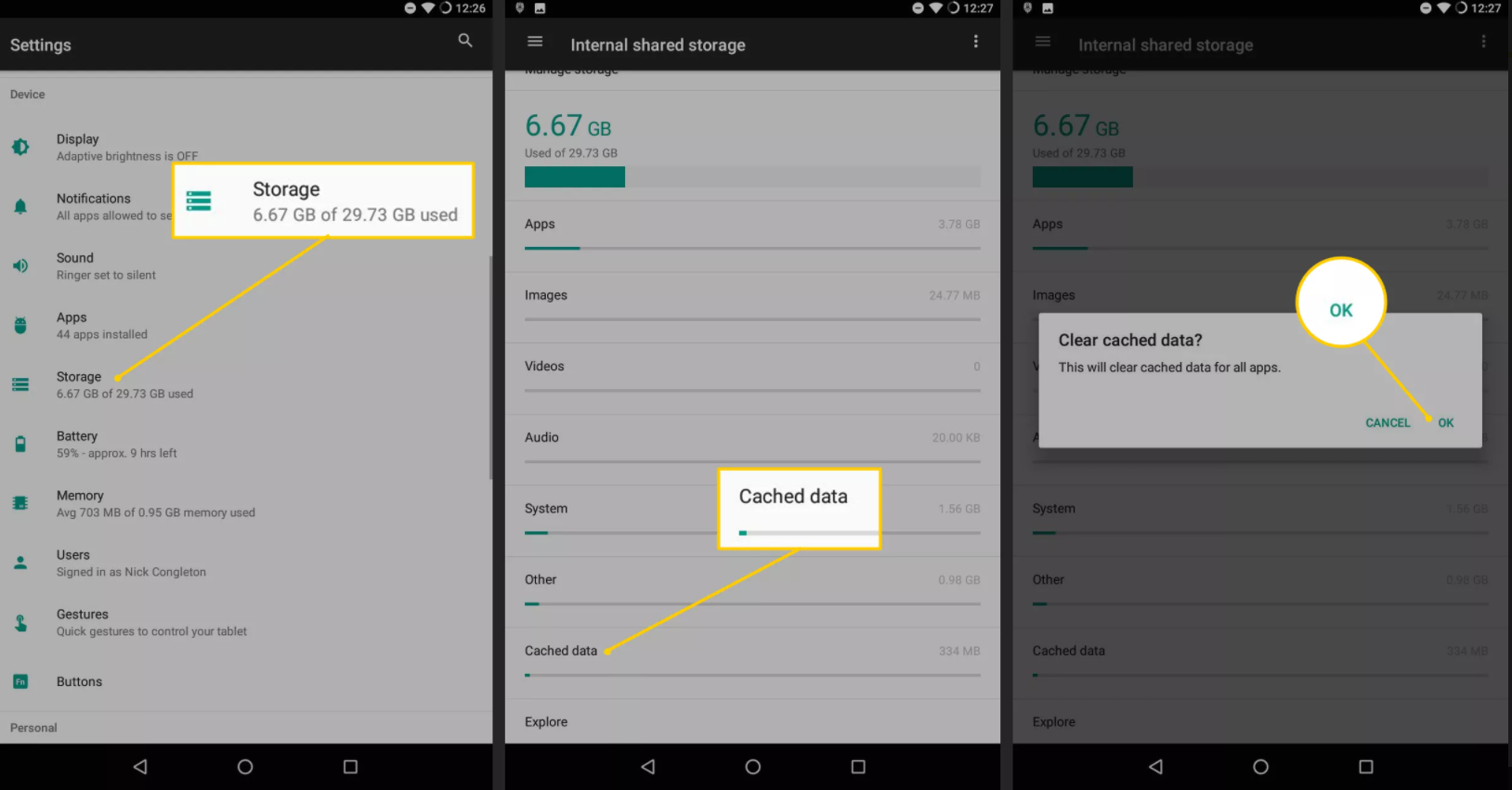
Thank you for your patience and cooperation! If you have cleared your cache and are still experiencing issues accessing your envelopes, please grab your Envelope ID and contact our support team.